Clinical Use Limitation: BionicLoop is investigational software and is not for independent clinical treatment use.
This document is intended for study-team review and supervised use preparation. The app screens shown are representative simulator captures from the current software baseline.
Revision History
Version
Date
Author
Summary of Changes
1.0
2026-03-05
Team
Initial IFU draft package
1.1
2026-03-05
Team
Expanded operational narrative and alerts
1.2
2026-03-05
Team
Added simulator screenshots and workflow cleanup
1.3
2026-03-05
Codex
Added controlled title page, revision history, generated TOC, and
print packaging
1.4
2026-04-05
Codex
Rebuilt as a workflow-driven user guide with refreshed screen set,
operational checklists, alert-response guidance, and stronger task
coverage
Table of Contents
Table of contents is generated automatically from document headings in the HTML and PDF outputs.
Investigational Use
Statement
BionicLoop is investigational software and is not approved
for independent clinical treatment use.
Use only under approved study protocol and supervision.
Use only after protocol-specific training on Dexcom G7, Omnipod
DASH, and BionicLoop workflows.
Do not rely on BionicLoop as the sole basis for treatment decisions
outside approved investigational procedures.
Follow site escalation procedures for therapy-impacting alarms,
workflow failures, device faults, and documentation.
1. About This Guide
This IFU describes how trained study users should:
sign in and recover app access,
review Home before acting,
verify clinical settings and start the algorithm session,
set up CGM and Pod workflows,
enter manual BG values,
announce meals,
stop an in-progress meal-announcement delivery if needed,
review alerts and recent dose steps,
document and escalate unresolved issues.
Intended Users
This guide is written for:
clinicians,
study staff,
trained supervised operators.
What This Guide Does Not
Replace
This guide does not replace:
Dexcom G7 app instructions,
Omnipod DASH setup and safety instructions,
study protocol,
site-specific escalation procedures.
2. System Overview
BionicLoop is a research closed-loop app that uses Dexcom G7 glucose
data, Omnipod DASH pump connectivity, and a 5-minute algorithm step
cadence to present current status and algorithm-directed dosing
context.
System Components
Component
Role in Workflow
iPhone running BionicLoop
Home view, settings, meal/BG entry, alert presentation,
telemetry
Dexcom G7 sensor and Dexcom ecosystem
Source of glucose data and primary CGM alarm handling
Omnipod DASH Pod
Insulin delivery path
BionicLoop cloud/telemetry path
Remote monitoring and quality review support when configured
What BionicLoop Does
displays current CGM, Pod, and loop status on Home,
supports clinical configuration and algorithm session control,
accepts manual BG entry,
accepts meal announcement input,
records recent algorithm/dosing steps for review,
presents in-app alerts and recent alert history.
What BionicLoop Does Not Do
BionicLoop does not replace Dexcom G7 app
alarming.
BionicLoop does not send OS notifications for CGM
alerts.
BionicLoop CGM alerts are informational on Home / Alert Center.
Dexcom G7 app remains the source of truth for CGM
alarms and should be configured per protocol.
CGM alerting policy: Keep the FDA-cleared Dexcom application configured correctly for urgent low, low, high, signal, and other sensor alarms. Review any BionicLoop CGM messages as supplemental app context, not as the primary alarm source.
3. Before First Use
Before supervised use, confirm all of the following.
3.1 Training and Readiness
Checklist
The user has been trained on the study workflow and escalation
rules.
The iPhone is charged and Bluetooth is enabled.
The user can sign in or site login support is available.
Dexcom G7 app access is available for pairing and sensor
management.
Pod supplies and site procedures are available.
Subject ID, weight, and approved clinical settings are
available.
The user understands that unresolved therapy-impacting issues
require escalation, not repeated blind retries.
3.2 Daily Start-of-Shift
Checks
Before initiating therapy-impacting actions:
Launch BionicLoop and confirm the correct subject context.
Confirm CGM value freshness and trend availability.
Confirm Pod presence and connection state.
Review active alerts before announcing a meal or entering BG.
If using remote monitoring, confirm login/session continuity.
4. Sign In and Account Access
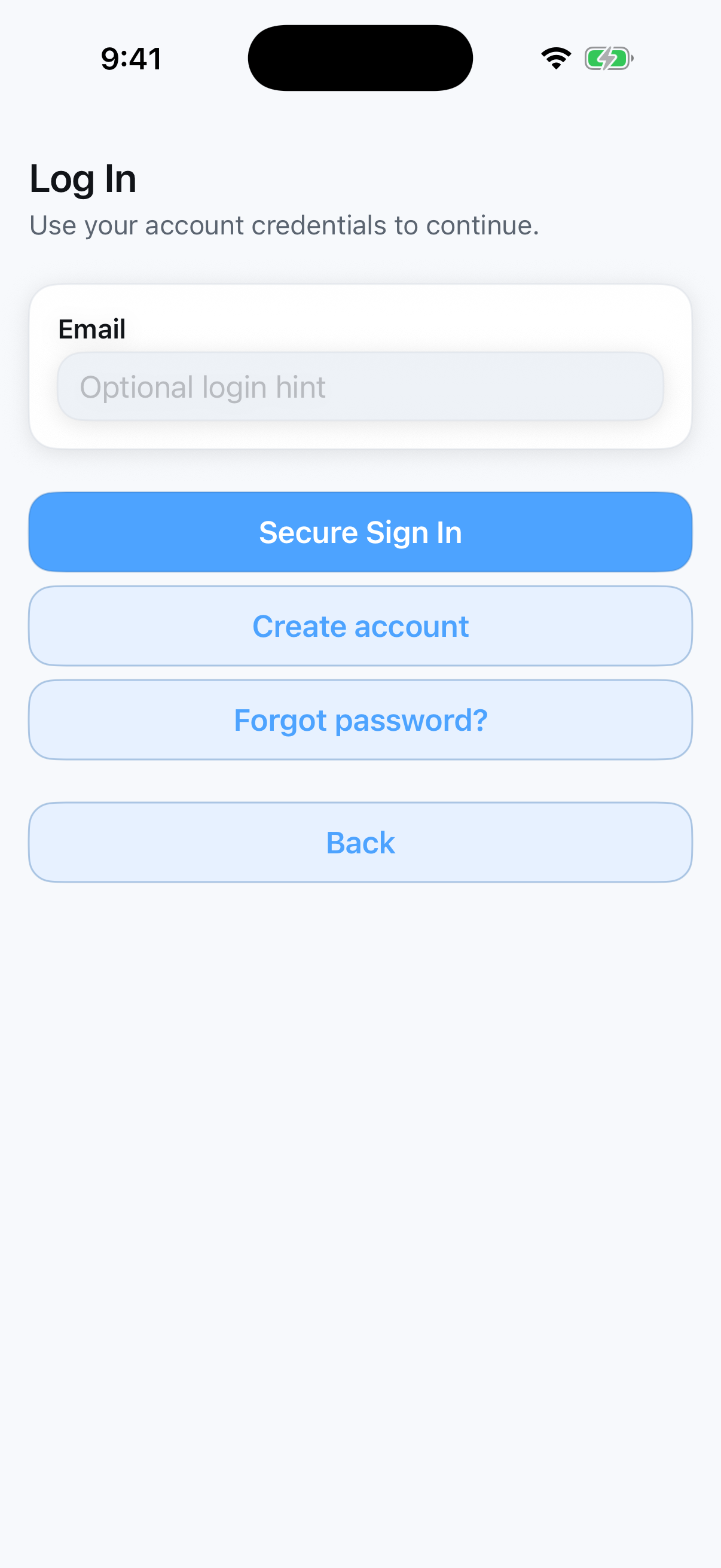
Use the authentication flow when the app opens to login-required
state.
Launch the app.
Enter the required account identifier.
Select Secure Sign In.
Use Create account or Forgot password?
only when authorized for the current workflow.
If authentication cannot be completed, stop and escalate per site
process.
Figure 1. Login entry screen.
4.1 If Login Is Lost
During Active Therapy
If the app indicates login is required while therapy remains
active:
treat this as a monitoring/session continuity issue,
reauthenticate as soon as permitted,
continue to follow protocol-defined local safety procedures,
document any remote-monitoring gap.
5. Home Screen Orientation
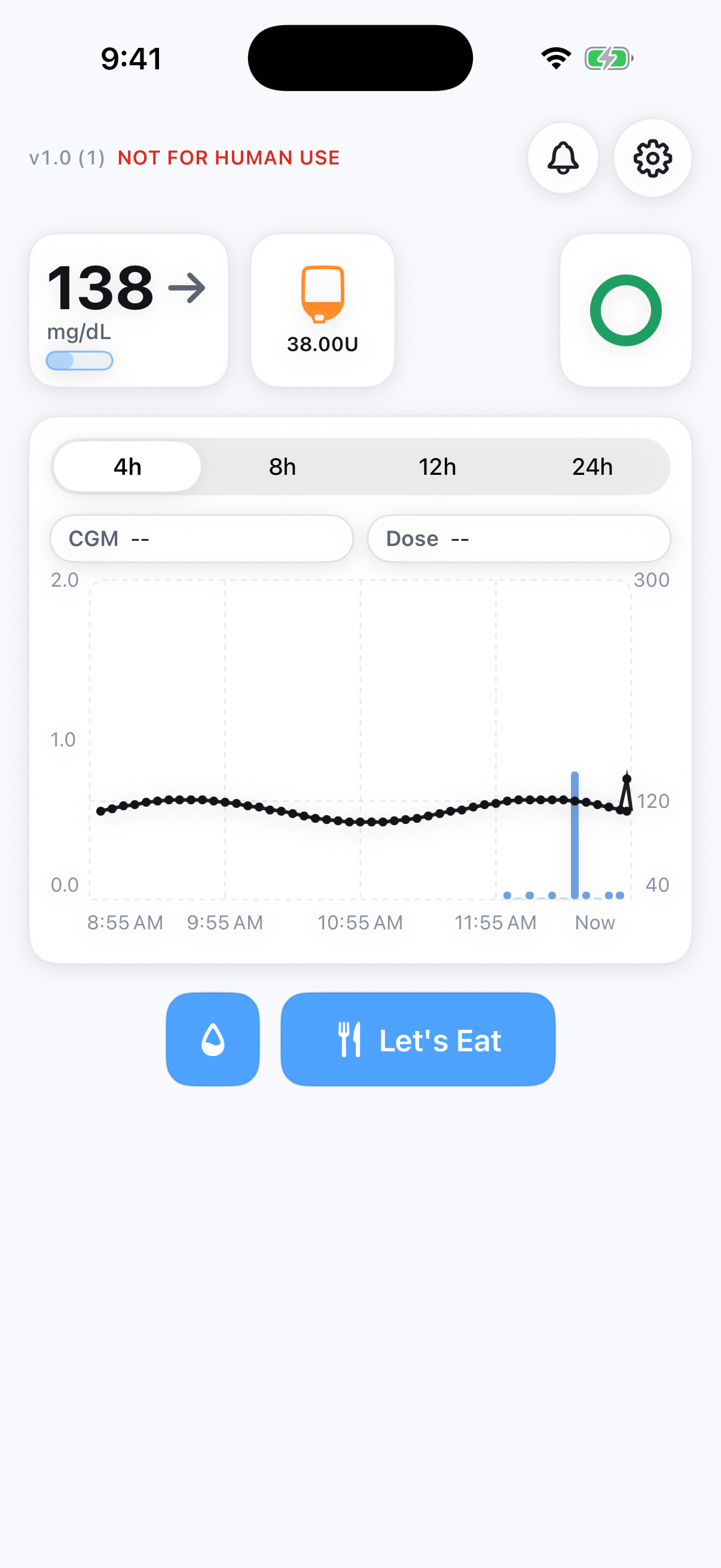
Home is the operational landing surface and should be reviewed before
any action.
Figure 2. Home with current CGM, Pod status, insulin chart, and action controls.
5.1 What to Review on Home
Home Area
What to Verify Before Acting
CGM card
Current value is present and appears plausible
Pod card
Pod is connected and not faulted/expired
Loop status card
Algorithm session appears active and not obviously blocked
Alert region above chart
Any active or recent issue that changes what you should do next
Chart
Recent glucose direction and recent insulin delivery pattern
Action row
Manual BG and Let's Eat are available when
expected
5.2 If Home Does Not Look
Ready
Do not proceed directly to meal announcement or therapy-impacting
action if:
CGM is missing or stale,
Pod is not available,
a pump fault/incompatible/expired condition is active,
an interruption or blocked-state alert is active and
unresolved.
6. Settings,
Clinical Configuration, and Dose Review
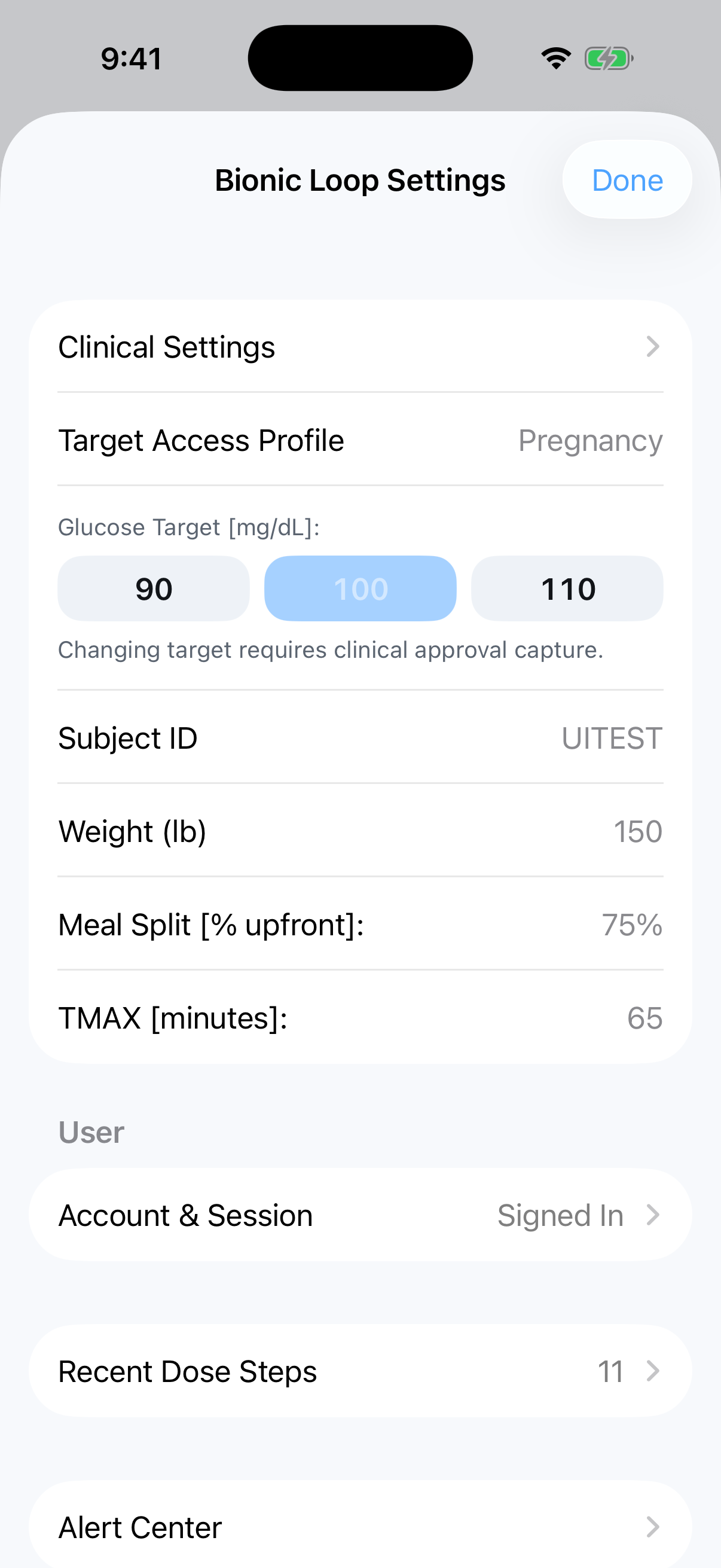
Use Settings to review the user/session state, device entry points,
recent dose history, and protected clinical settings.
Figure 3. Bionic Loop Settings sheet.
6.1 Open Settings
Tap the settings gear on Home.
Review the current target, subject ID, weight, and algorithm-input
summary.
Open device settings from this sheet when CGM or Pod setup/review is
needed.
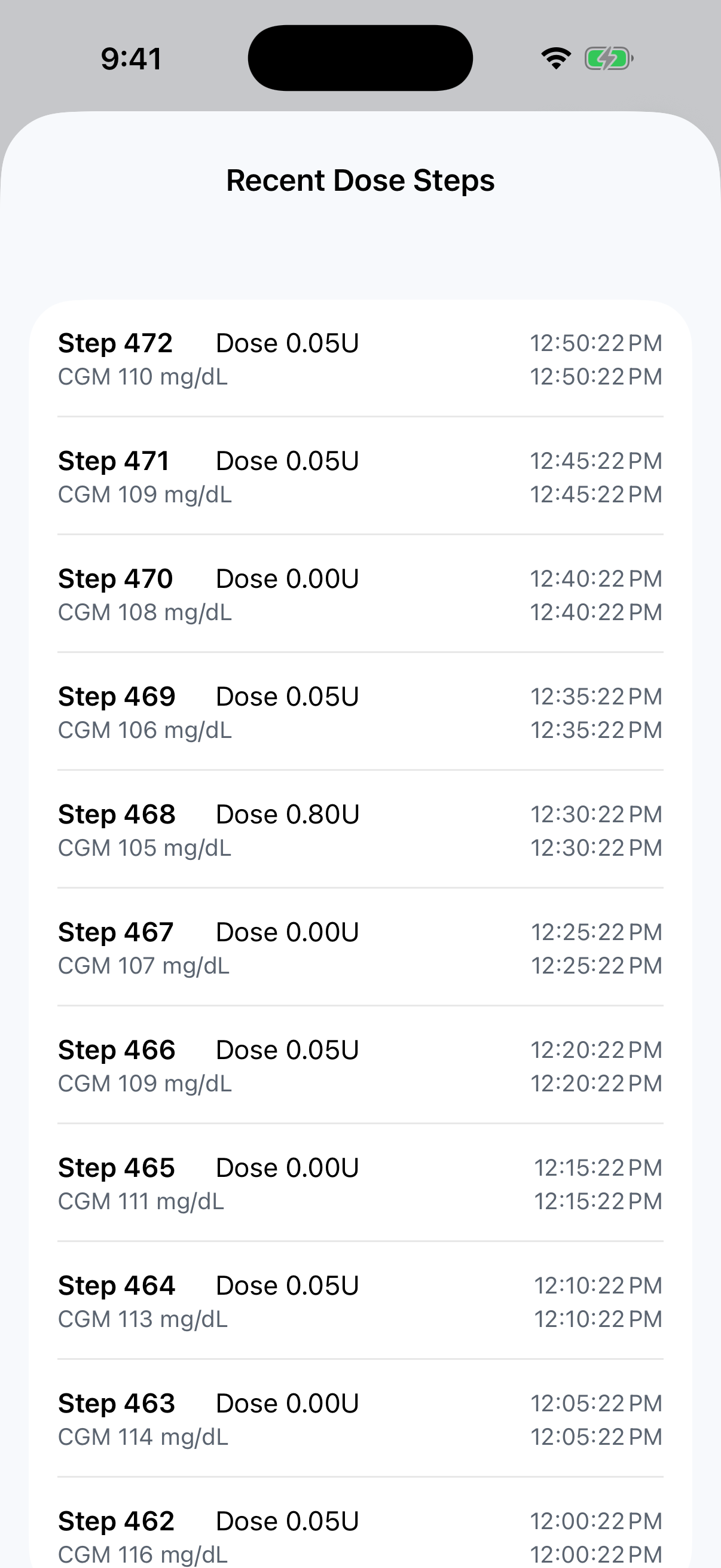
6.2 Review Recent Dose Steps
Use Recent Dose Steps when you need to confirm what the
algorithm recently recommended and delivered.
Open Settings.
Tap Recent Dose Steps.
Review step number, delivered dose, CGM value, and timestamps.
Use this screen when documenting workflow review or reconciling
recent activity.
Figure 4. Recent Dose Steps review screen.
6.3 Clinical Settings
Clinical Settings are passcode-protected and should only be changed
by authorized users.
Open Settings.
Open Clinical Settings.
Unlock using the approved passcode.
Review or update:
Subject ID
Weight (lb)
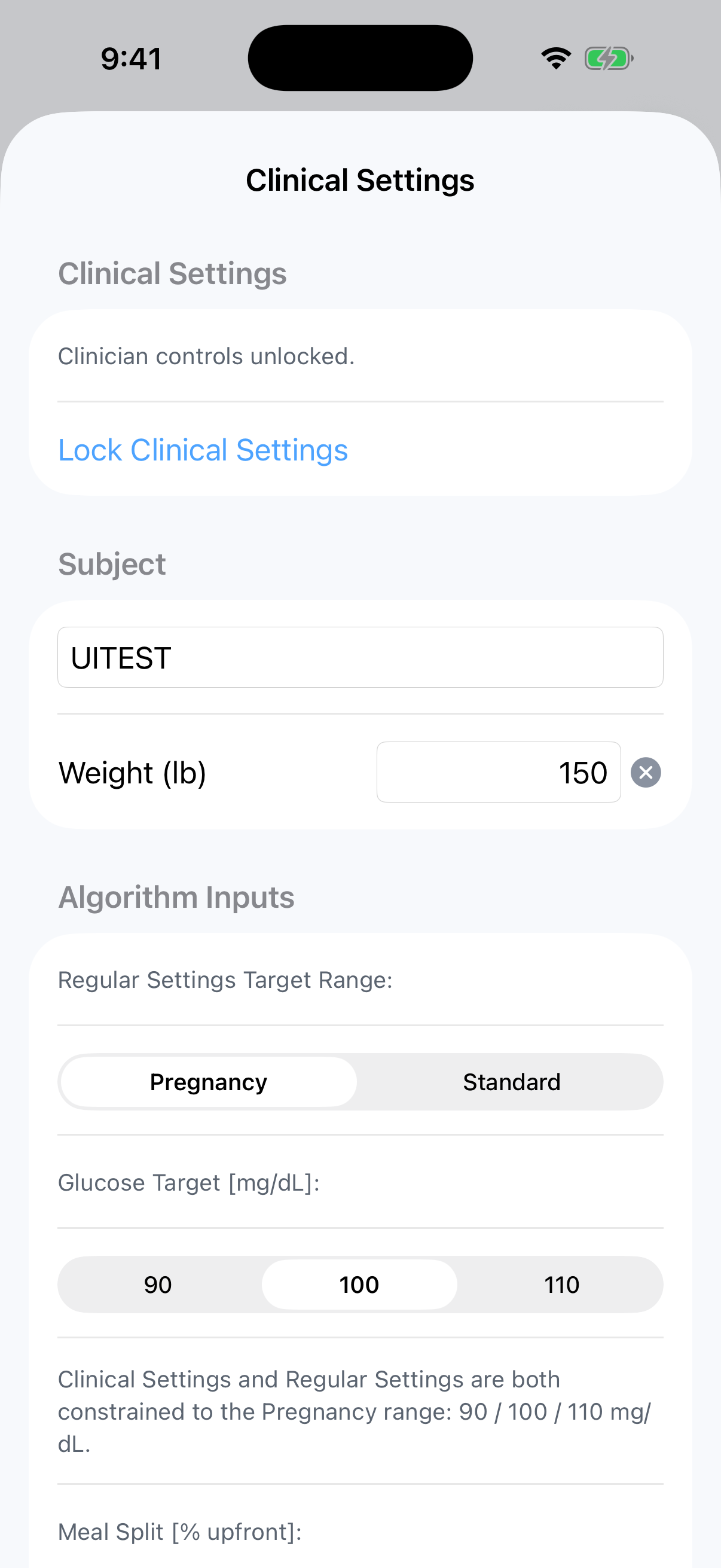
target profile / glucose target
meal split
TMAX
Save only after confirming the values match the approved subject
plan.
Figure 5. Clinical Settings with algorithm input controls.
6.4 Start Algorithm Session
Use Start Algo only from Clinical Settings, and only
when no active algorithm session is already running.
Before starting:
Confirm subject ID and weight.
Confirm the approved target profile and input settings.
Confirm CGM and Pod workflows are ready enough to support the first
anchored loop step.
7. Dexcom G7 Workflow
Use the CGM flow to onboard or review Dexcom G7 status inside
BionicLoop.
7.1 First-Time CGM Setup
Open Settings.
Select Open CGM Settings.
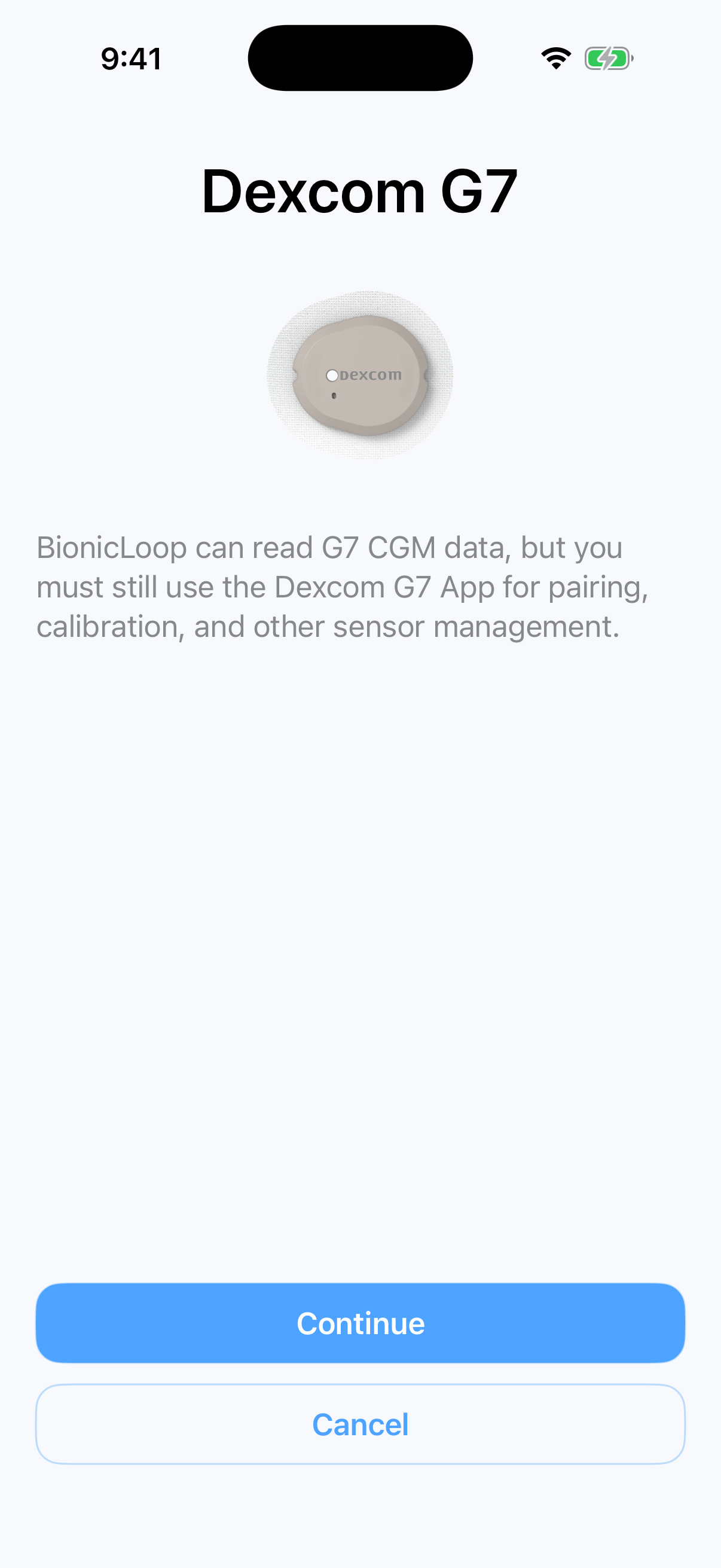
Follow the guided Dexcom G7 setup path.
Continue pairing/calibration/sensor-management tasks in the Dexcom
app as required.
Figure 6. Dexcom G7 setup entry view.
7.2 Review CGM Status
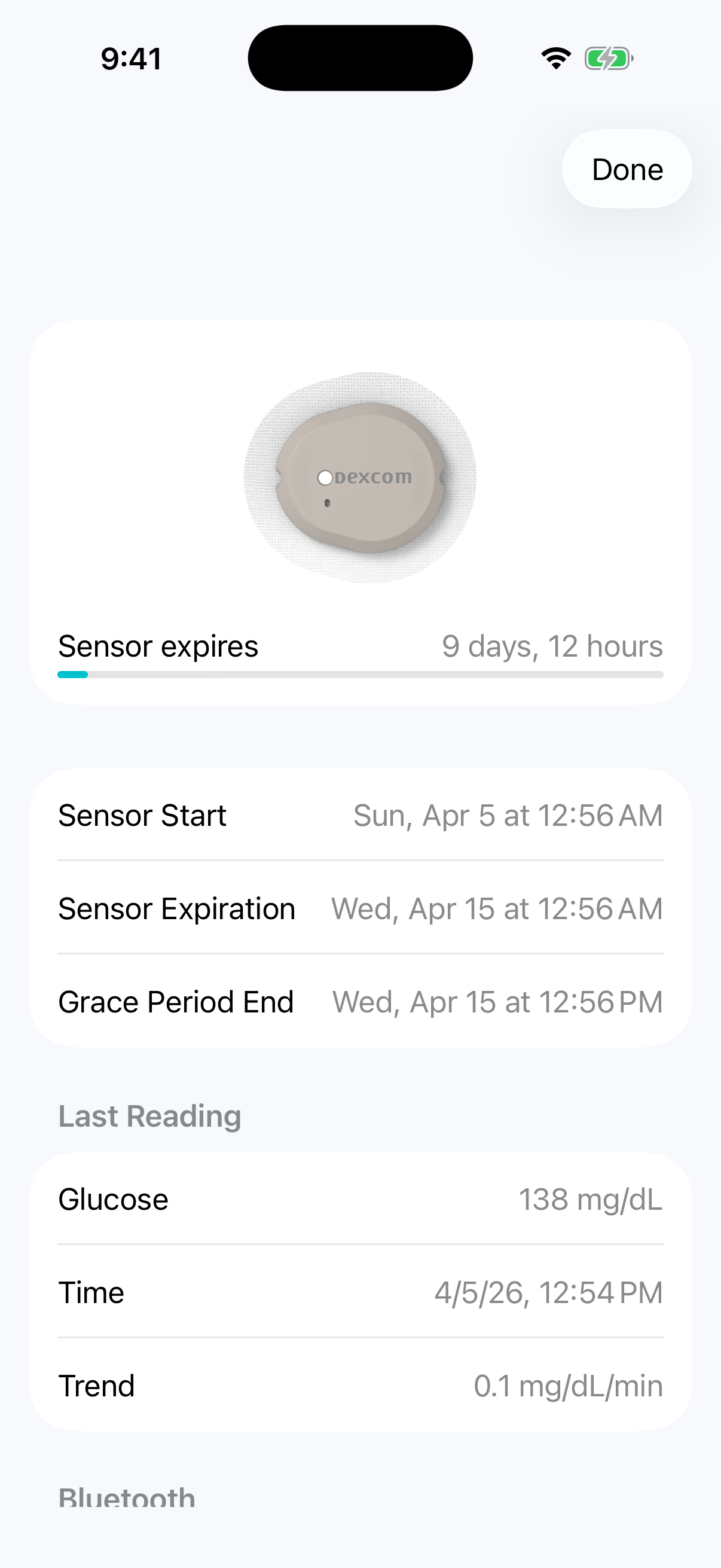
Use the CGM settings view to confirm sensor details and recent
reading status.
Check:
sensor expiration timing,
last reading value and timestamp,
trend information,
Bluetooth freshness/connection recency.
Figure 7. Dexcom G7 operational/settings view.
7.3 CGM Alarm Handling
If a low, urgent low, high, or other sensor alarm is clinically
relevant:
Use the Dexcom app as the primary alarm source.
Respond per protocol.
Use BionicLoop only as supplemental review context on Home / Alert
Center.
8. Pod Workflow
Use the Pod flow to begin DASH onboarding or to return to
pump-related setup when a new Pod is needed.
Open Settings.
Select Open Pod Settings.
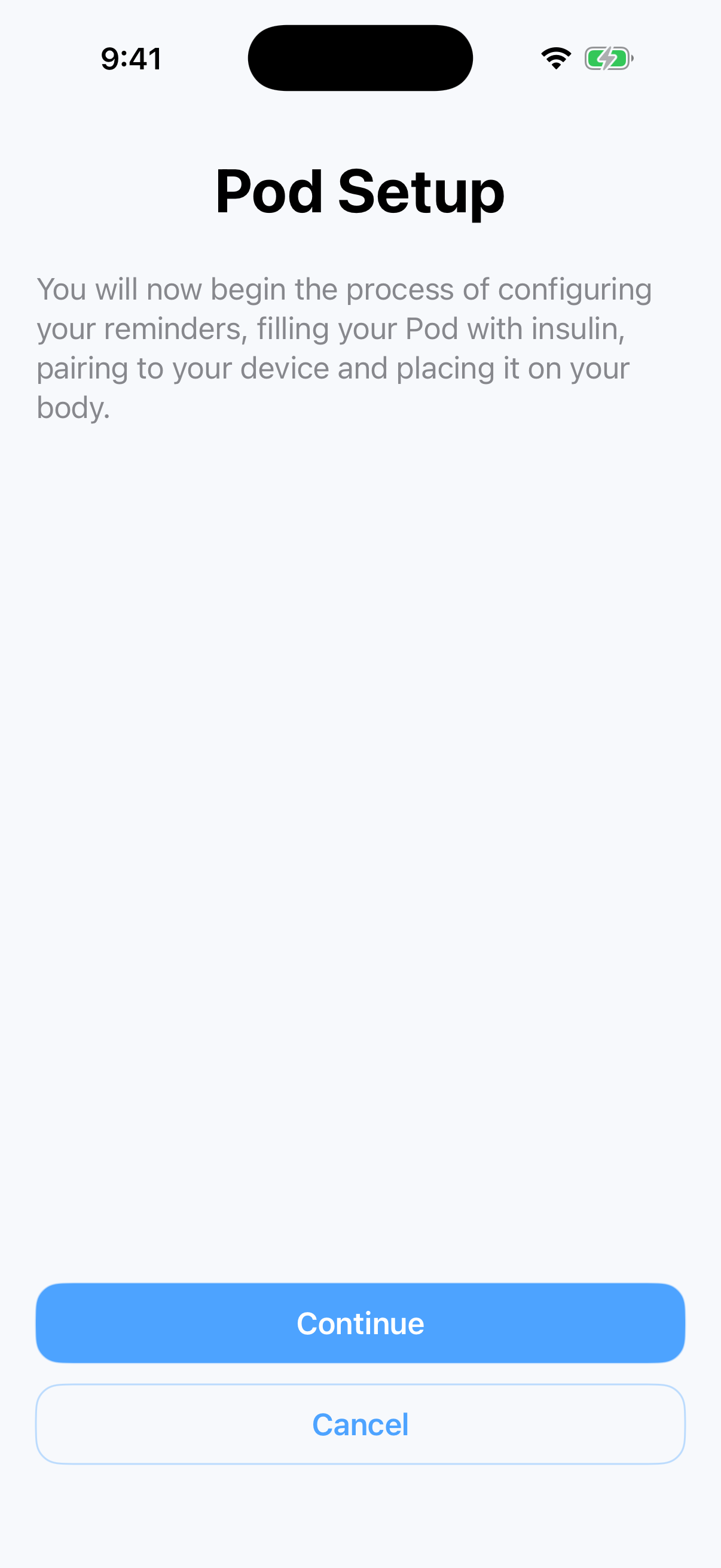
Follow the Pod setup instructions for reminder configuration, fill,
pairing, and placement.
Complete all physical device steps per Omnipod instructions.
Figure 8. Pod setup entry view.
8.1 Before
Proceeding With Pod-Dependent Actions
Confirm:
the Pod is active,
signal is present,
no pump fault/incompatible/setup-incomplete alert is active,
the Pod is not beyond its usable service window.
9. Routine Daily Workflows
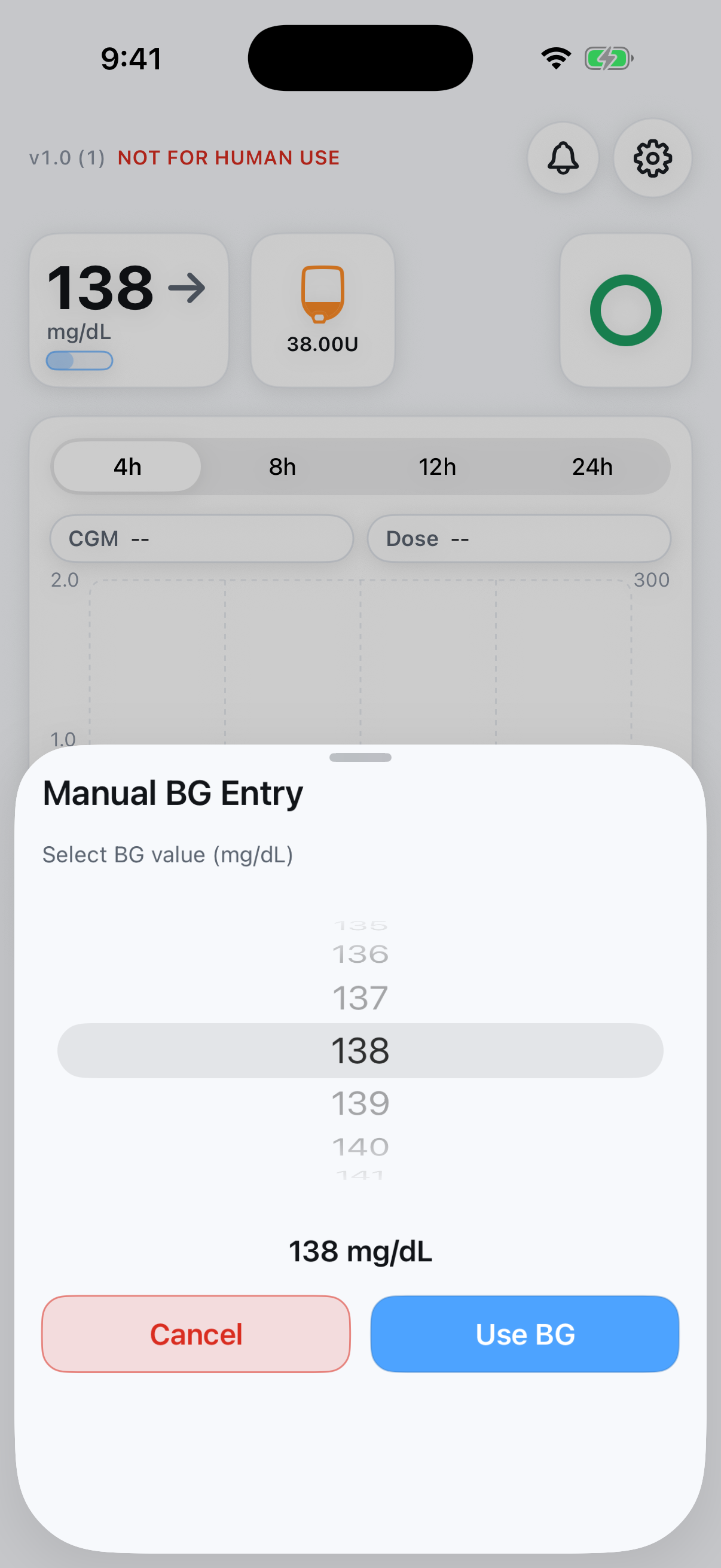
9.1 Manual BG Entry
Use manual BG only when needed per protocol or when prompted by the
workflow.
On Home, tap the droplet button.
Select the BG value.
Confirm the entry using Use BG.
Cancel if the value is not ready to submit.
Figure 9. Manual BG entry sheet.
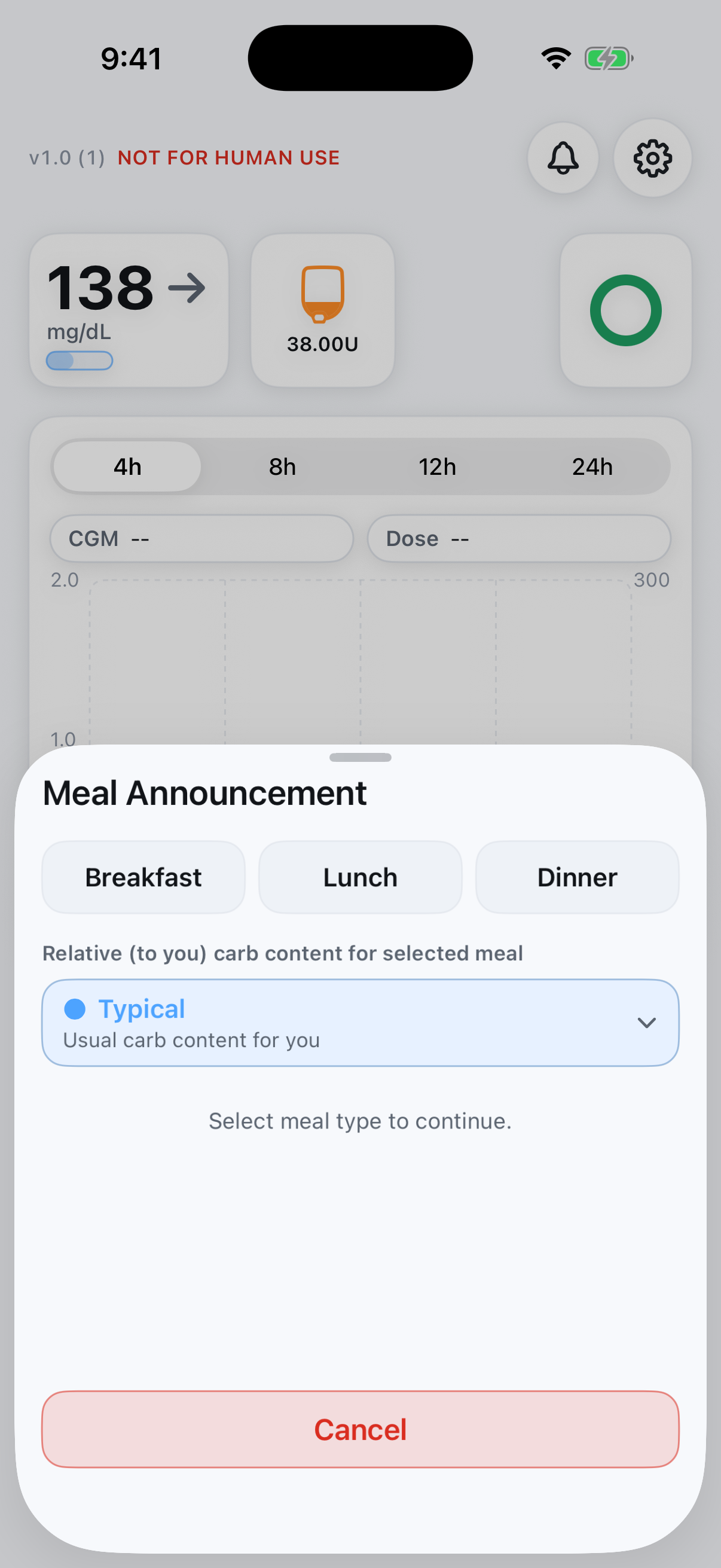
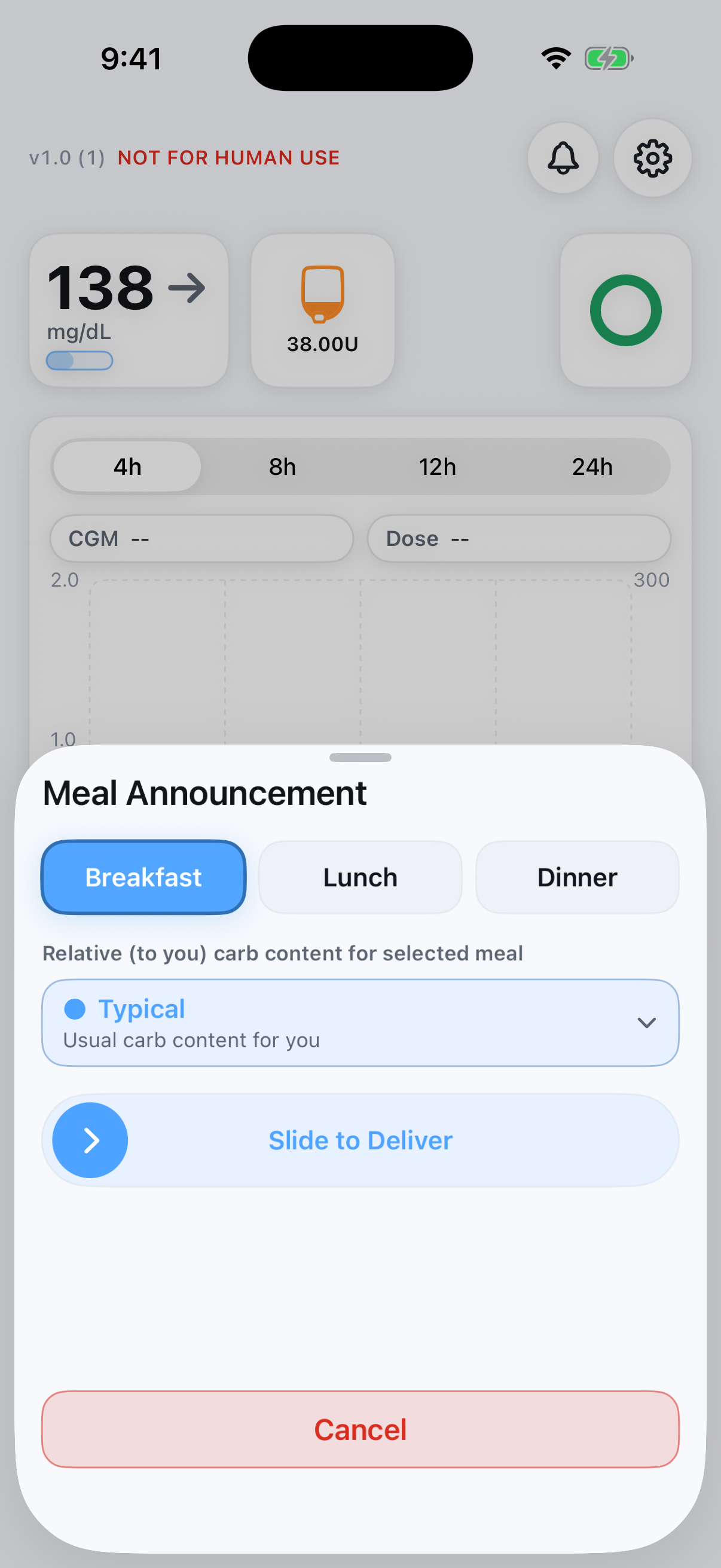
9.2 Meal Announcement
Use meal announcement only when Home is ready and the workflow is
available.
On Home, tap Let's Eat.
Select meal type.
Select the relative carb content for that meal.
Review the enabled delivery control.
Slide to deliver when the meal announcement is correct.
Figure 10. Meal announcement composer.Figure 11. Meal announcement after meal selection, ready for delivery.
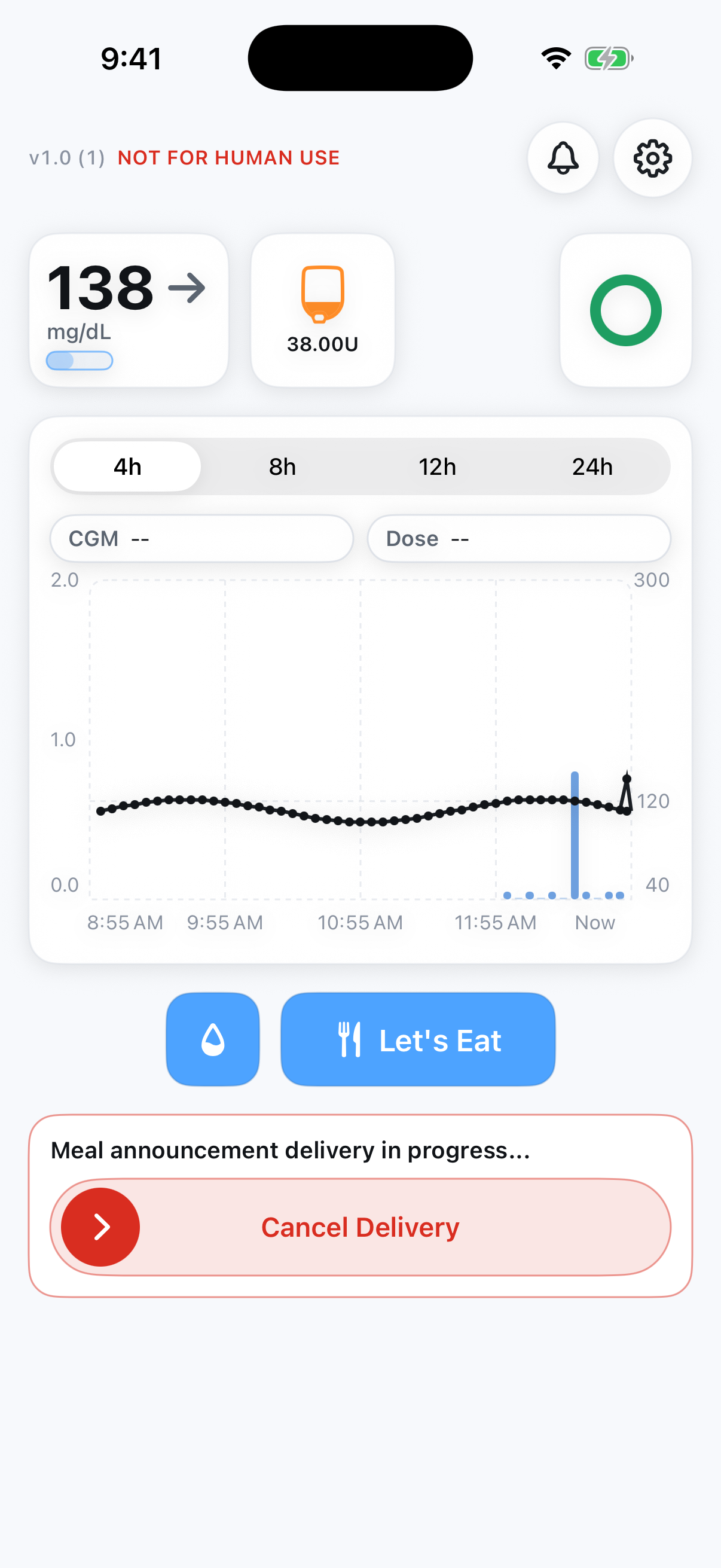
9.3 Cancel In-Progress Meal
Delivery
If meal-announcement delivery is already in progress, Home presents a
dedicated red Cancel Delivery slider beneath the main
action row.
Verify that the cancel action is for the active meal-announcement
delivery.
Slide Cancel Delivery.
Wait for the Home summary to report what insulin was actually
delivered.
If another meal announcement is still needed, reopen the meal flow
and re-enter it deliberately.
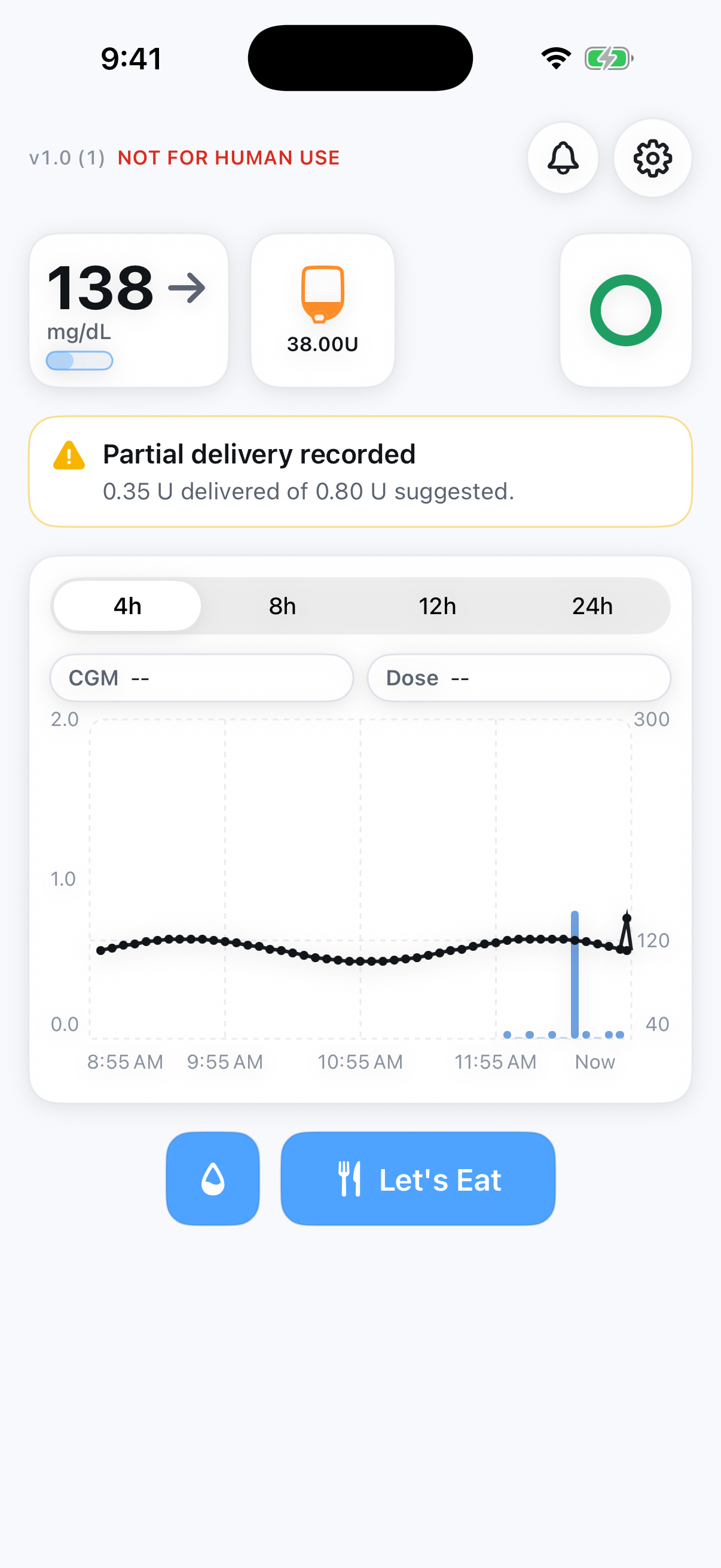
Figure 12. Home with meal-announcement delivery in progress and cancel slider available.Figure 13. Orange partial-delivery summary shown above the chart after delivery is interrupted.
9.4 How to
Interpret the Partial Delivery Summary
If the Home banner states that a partial amount was delivered:
the algorithm requested more insulin than was actually
delivered,
the displayed delivered amount is the amount that reached the pump
before cancellation,
the partial-delivery summary remains visible long enough for review
and then clears automatically after a later step and minimum display
time,
the delivered amount remains part of the recorded therapy
history.
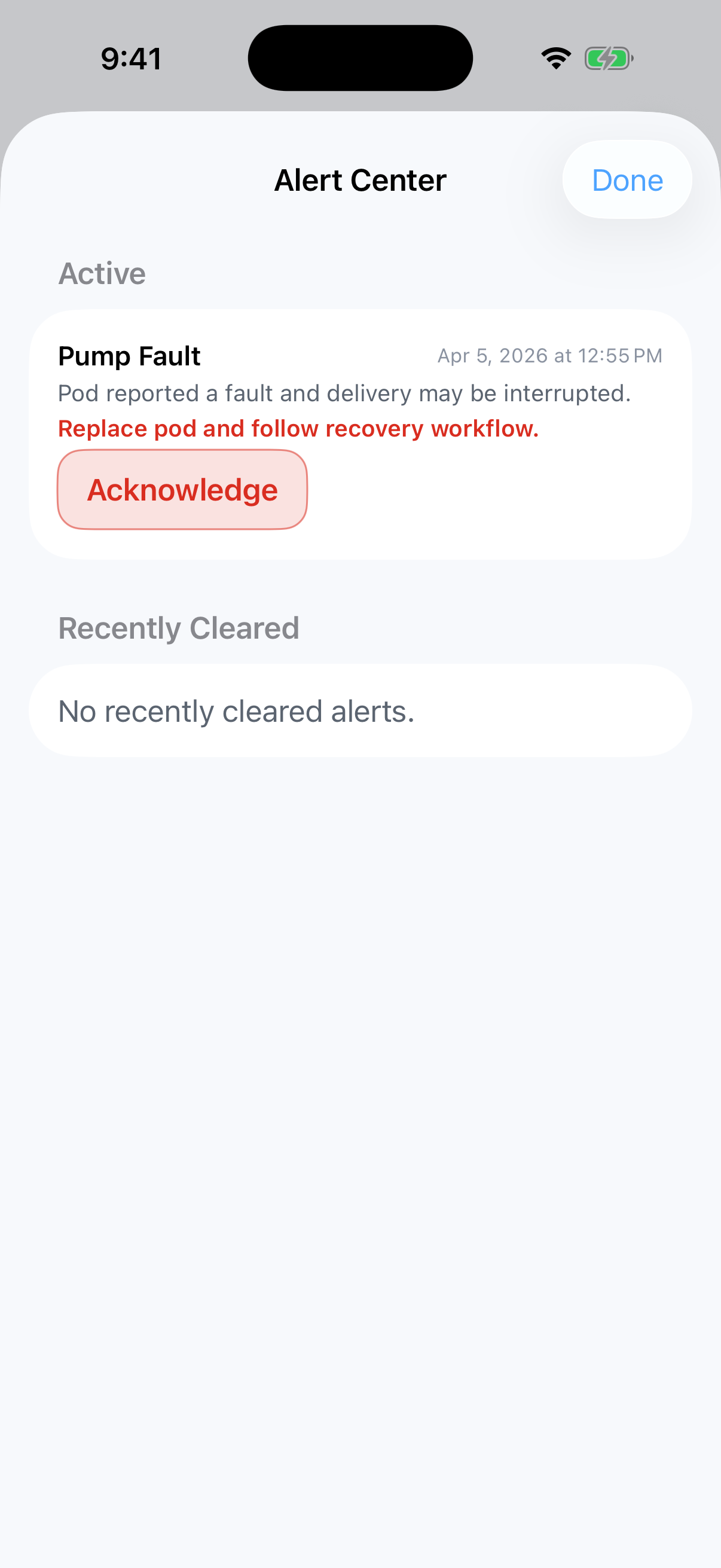
9.5 Alert Review
Use Alert Center to review active alerts and recently cleared
alerts.
Tap the bell on Home.
Review all active alerts before proceeding with therapy-impacting
actions.
Acknowledge or resolve alerts only as permitted by workflow and
protocol.
Use the recent section to confirm a condition has cleared.
Figure 14. Alert Center showing an active pump fault alert.
10. Alerts and User Response
Alert handling should be based on the alert source and the risk to
ongoing therapy.
10.1 Pump /
Therapy-Impacting Alerts
Examples include:
pump fault,
incompatible Pod,
no active Pod,
signal loss,
Pod expired / stopping dosing soon,
setup incomplete,
algorithm stepping interrupted when delivery cannot proceed
normally.
User action:
Read the alert fully.
Resolve the underlying device or workflow issue.
Do not assume therapy is normal until the Home state and alerts
agree that the condition is cleared.
10.2 CGM Alerts Inside
BionicLoop
CGM alerts in BionicLoop are informational app context only.
BionicLoop does not send OS notifications for CGM alerts.
Dexcom app remains the source of truth for urgent low and other CGM
alarm behavior.
A BionicLoop urgent-low review alert may appear in-app for
trustworthy glucose below the urgent-low threshold; this is a review aid
and does not replace Dexcom alarming.
10.3 Alert-Response
Principles
Use the following response sequence:
Check whether the alert changes therapy readiness.
Confirm the device state directly when applicable.
Review Home and recent dose context.
Escalate unresolved therapy-impacting conditions instead of
repeatedly retrying actions.
11. Troubleshooting and
Recovery
Situation
What to Do
No current CGM value shown
Check Dexcom app, sensor state, and reading freshness before relying
on BionicLoop glucose context
Meal announcement unavailable
Read the blocking message and confirm pump, CGM freshness, timing
window, and session status
Pod unavailable / no active Pod
Reconnect or replace the Pod per protocol before proceeding
Pump fault / incompatible alert
Treat as therapy-impacting; replace/recover per protocol and verify
Home clears appropriately
Pod expired or stopping soon
Plan Pod replacement before continued therapy reliance
Partial delivery recorded
Review the delivered amount, confirm whether further meal
announcement is still needed, and document if clinically relevant
Login required for remote monitoring
Reauthenticate when allowed; document the monitoring gap if
required
11.1 If
the Screen State and Device State Do Not Match
If BionicLoop and the physical device/app state do not appear to
agree:
Stop and reassess.
Review active alerts.
Verify Dexcom state in the Dexcom app and Pod state in the Pod
workflow.
Capture screenshots if needed.
Escalate per site process.
12. Documentation and
Escalation
For unresolved or therapy-impacting conditions:
Stabilize the situation per study protocol.
Record the time and sequence of events.
Capture the relevant Home / Alert Center / device screen.
Note any partial delivery amount or relevant recent step
context.
Escalate to the supervising clinical/study contact.
Appendix A. Figure Index
Figure
File
Section Use
Figure 1
auth-login-start.png
Sign in
Figure 2
home-default.png
Home overview
Figure 3
home-settings.png
Settings
Figure 4
recent-dose-steps.png
Recent dose review
Figure 5
home-clinical-settings.png
Clinical settings
Figure 6
cgm-setup.png
CGM setup
Figure 7
cgm-settings.png
CGM settings
Figure 8
pump-setup.png
Pod setup
Figure 9
home-manual-bg.png
Manual BG
Figure 10
home-meal-announcement.png
Meal composer
Figure 11
meal-ready-to-deliver.png
Meal ready-to-deliver state
Figure 12
home-meal-cancel-delivery.png
Cancel-delivery control
Figure 13
home-meal-cancel-delivery-partial.png
Partial-delivery summary
Figure 14
home-alert-center.png
Alert Center
Appendix B. Abbreviations
and Acronyms
Abbreviation
Meaning
IFU
Instructions for Use
CGM
Continuous Glucose Monitor
BG
Blood Glucose
TMAX
Time to maximum insulin effect parameter
DASH
Omnipod DASH pump system
Appendix C. Daily Use
Quick Checklist
Confirm the correct subject and active session context.
Confirm CGM freshness.
Confirm Pod readiness.
Review alerts before acting.
Use Manual BG or Let's Eat only when Home
is ready.
Review any partial delivery or interruption summary before
proceeding.
Document and escalate any therapy-impacting mismatch or unresolved
alert.